Your company has invited you to Snubbas, an AI coach that works with you one day at a time. Every morning you decide the one thing you are going to Build; every evening you look at how it went. This guide takes you from the invitation email to your first full day.
For everyone on a teamEight stepsAbout fifteen minutes
01
Accept the invitation
Your account already exists. You only have to switch it on.
Snubbas has no sign-up form: your company adds you and sends the invitation. It arrives as an email asking you to activate your account. Open the link, choose a password, and that is the account done.
Then install Snubbas on your phone — from the App Store on an iPhone, or Google Play on Android — and open it.
02
Sign in
The app opens on Welcome back.
Enter your Email and the Password you just chose, then tap Sign in.
If your email belongs to more than one company, Choose a workspace appears first. Pick the one that invited you.
Forgot your password? on the same screen emails you a reset link. Type your email into the field above it first.
03
AI and your data
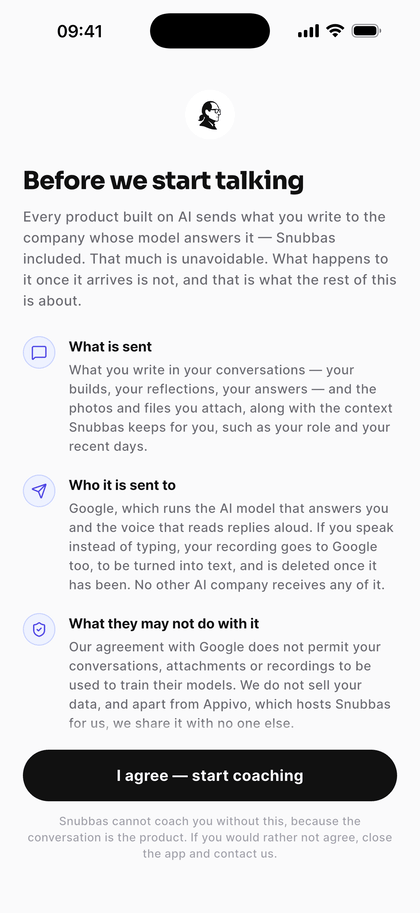
Before the first conversation, Snubbas tells you what happens to what you say to it — Before we start talking.
What is sent: what you write or say, the files you attach, and the context Snubbas keeps for you.
Who it is sent to: Google, which runs the AI model and the voice. Nobody else.
What they may not do with it: train their models on it. Snubbas does not sell it.
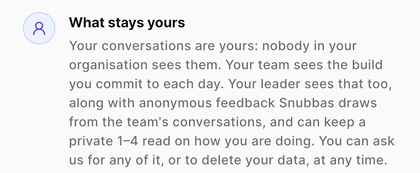
What stays yours: your conversations. Nobody in your organisation sees them.
Tap I agree — start coaching when you have read it. You can read it again at any time under ☰ → Privacy policy.
Before we start talking: what is sent, and to whom.What stays yours — written for someone on a team.
04
Meet Snubbas
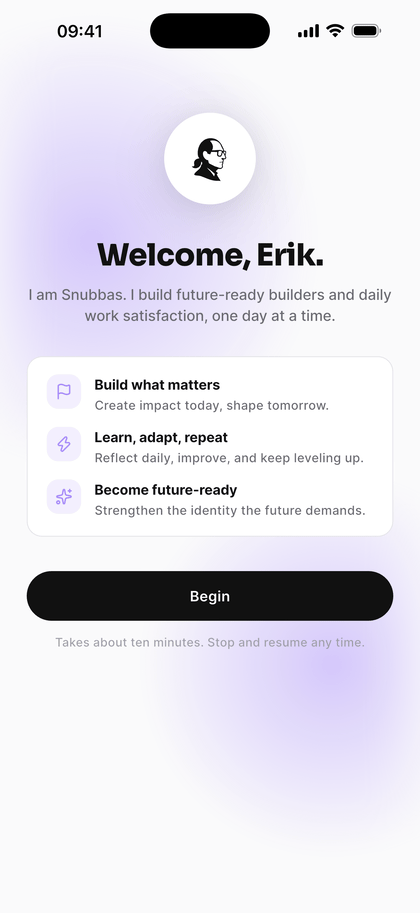
A welcome with your name on it, and one button: Begin.
Begin plays a short film, Working with Snubbas, about what the next few weeks will be like. Watch it — it is short — or tap Skip. Then the conversation opens.
The first screen after you agree. About ten minutes from here.
05
The onboarding conversation
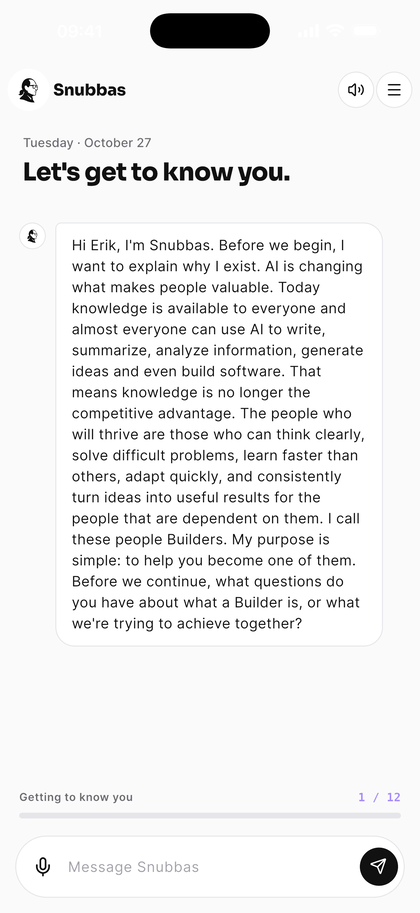
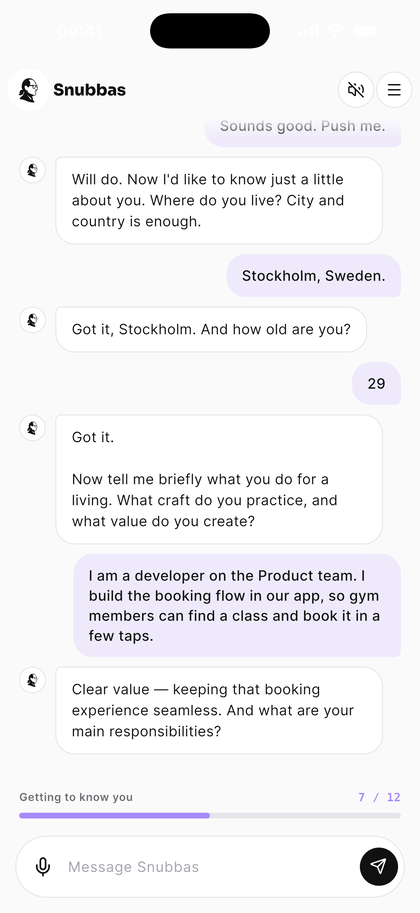
Snubbas gets to know you. One question at a time, in your own words, typed or spoken. The bar under the conversation, Getting to know you, shows how far along you are.
Why Snubbas exists
It opens by explaining what it is for: helping you become a Builder — someone who thinks clearly, learns fast and turns ideas into results — and how it does that differently from other AI. It will ask you questions rather than hand you answers. Ask it anything here; it waits for you.
A little about you
Where you live, how old you are, what you do for a living, what you are responsible for, and whether you lead a team.
Your rhythm
Whether you want to work with Snubbas every day or on weekdays, your usual working hours, and when you would like to define your Build in the morning.
How it works, in one go
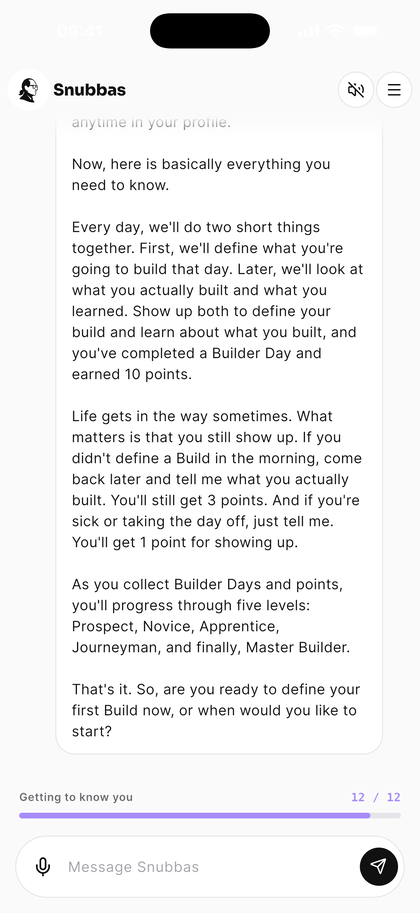
Snubbas closes with everything you need to know about the method in a single message — the daily loop, the points and the levels (step 07) — and asks whether you want to start now or on another day. Then you are back on your home screen.
Why Snubbas exists — and an open door for questions.One question at a time. The bar shows how far you are.Everything about the method, in one message.
06
Define your first Build
One thing you will have built by the end of the day.
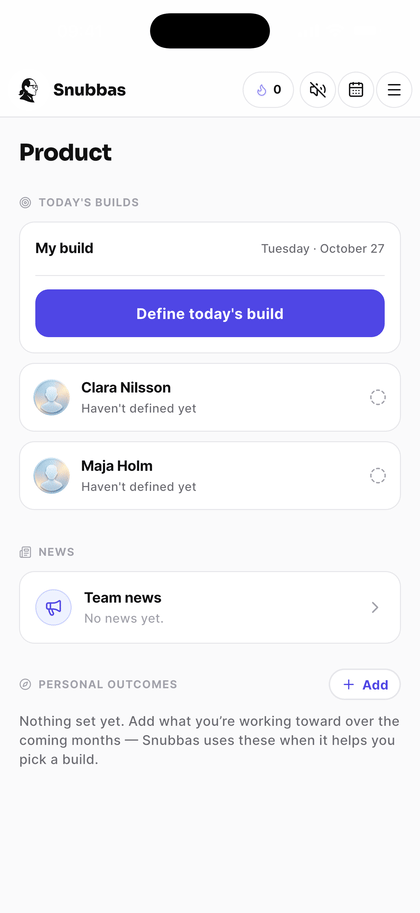
On your home screen, tap Define today’s build.
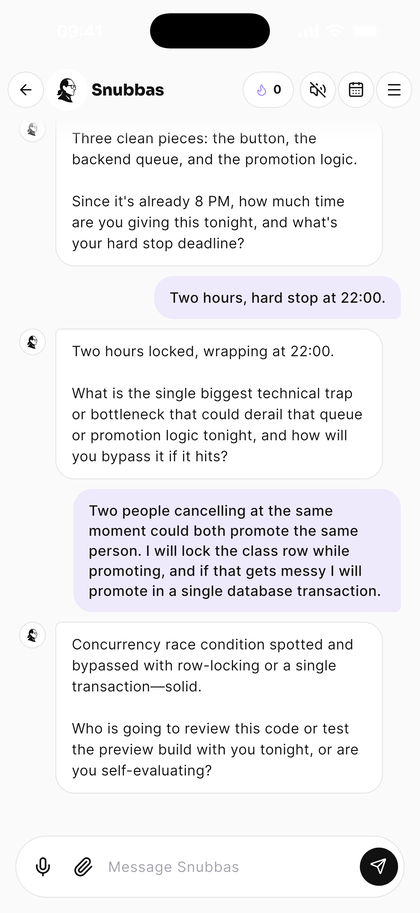
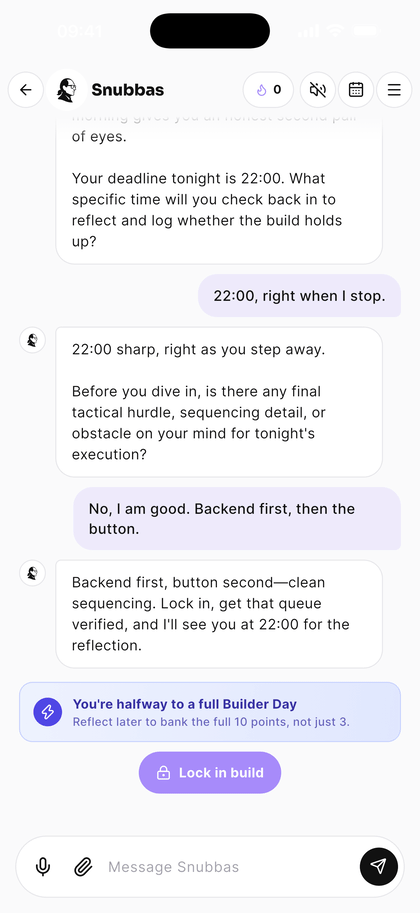
Snubbas asks What are you building? Say it plainly. Then it sharpens it with you, a question at a time: how you will know it is done, whether it is the right size, how much time you are giving it, what is most likely to get in the way and how you will get past it, who could give you feedback, and when you will reflect.
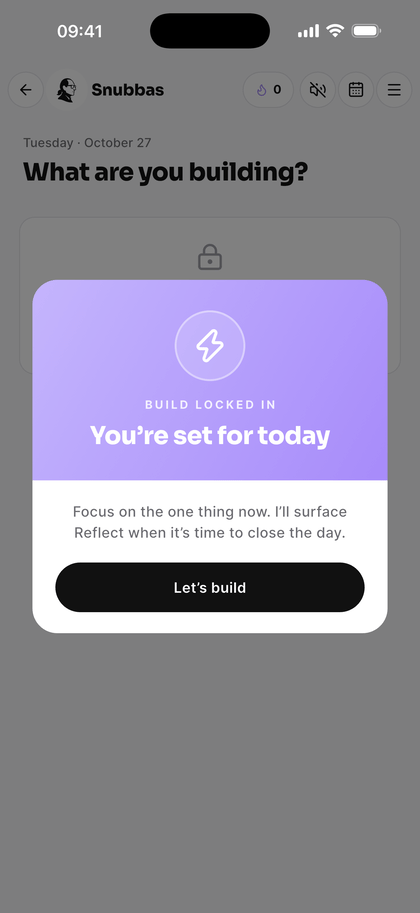
When it is clear, tap Lock in build.
Your home screen, with your team underneath.The bottleneck, and the plan to get past it.Clear enough? Lock in build.You’re set for today.
Then go and do it. Snubbas stays out of your way for the rest of the day — no pings, no nudges. Stuck on the way? Problem solve under your Build opens a conversation about it.
07
Reflect at the end of the day
Reflect on today: did the Build land, or did it turn into something else? Either is fine. The point is to learn from it.
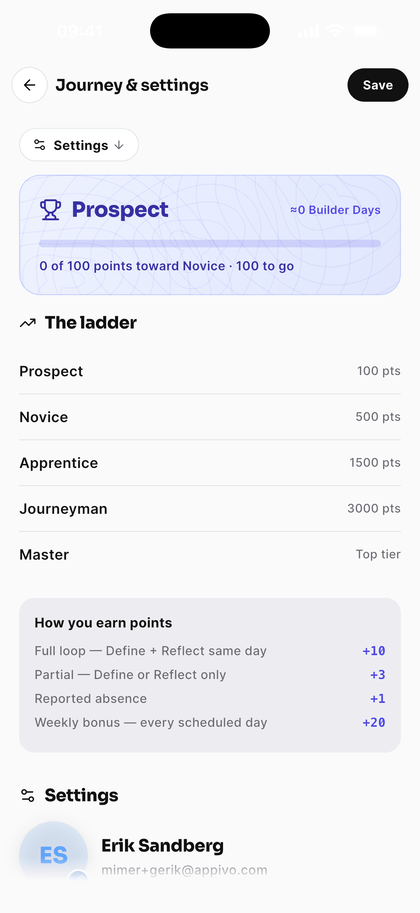
Snubbas asks what you built and what you learned, then closes the day with you. That is a Builder Day.
+10
Defined in the morning and reflected the same day
+3
Only one of the two — say, you came back in the evening and told Snubbas what you built
+1
Off sick or taking the day off, and you told Snubbas
+20
A weekly bonus for showing up on every day you are scheduled
Points move you up five levels: Prospect, Novice, Apprentice, Journeyman and Master. You find them under ☰ → Journey & settings.
Your level, the ladder, and how points are earned.
08
Find your way around
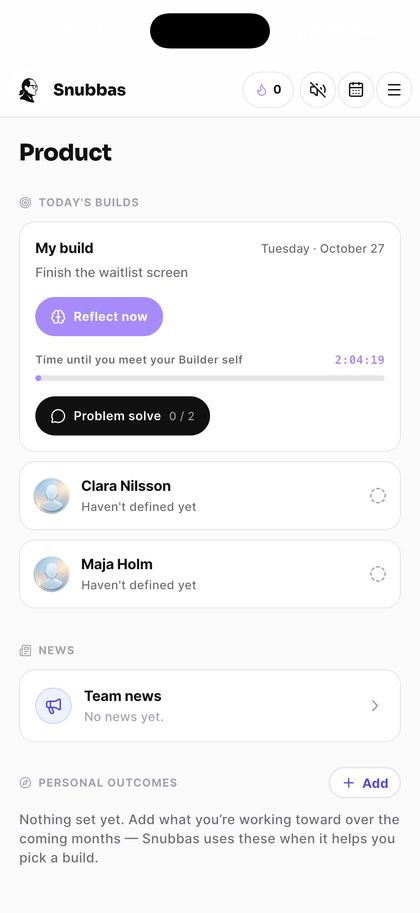
Your home screen is your day and your team’s, on one page.
My build — today’s Build, and the button for whatever comes next: define, reflect, or close the day. Once it is locked in, a countdown shows how long until you reflect.
Today’s builds — what everyone on your team is building today.
News — updates your leader posts for the team.
Team builds — what the team as a whole is working toward, once your leader has set it.
Personal outcomes — what you are working toward over the coming months. Snubbas uses these when it helps you pick a Build.
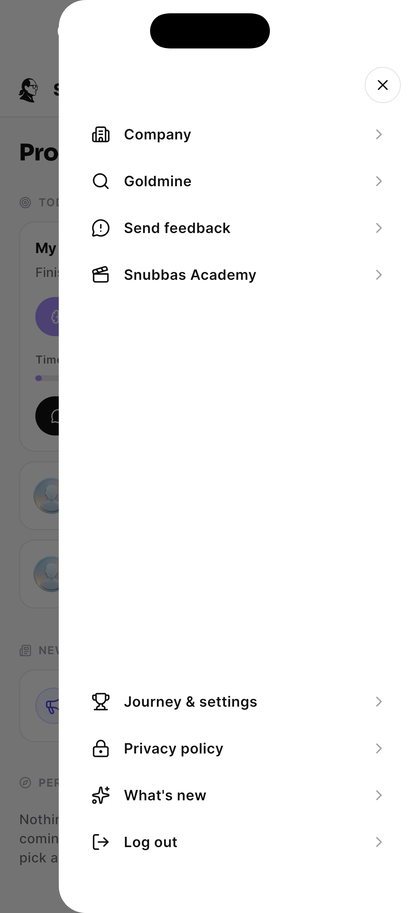
And under ☰:
Company — what the company does, what it is building toward, and its teams.
Goldmine — ask your own Builder history anything.
Feedback & Recognition — observations your leader has written about your work.
Snubbas Academy — short films on being a Builder.
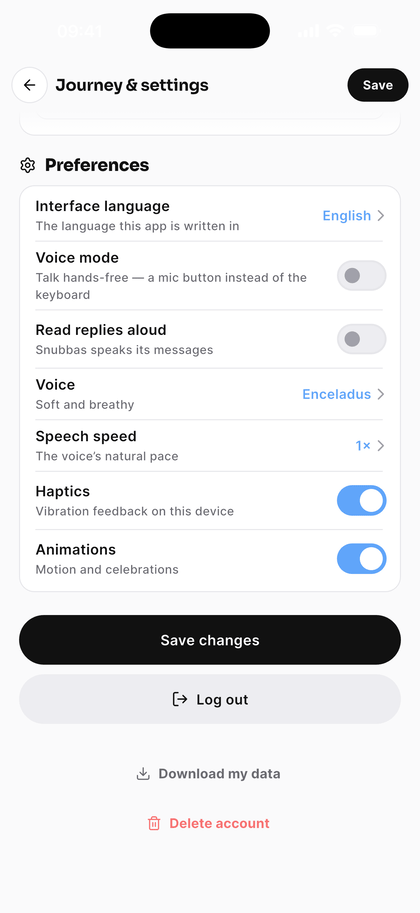
Journey & settings — your points and level, your schedule, voice and language.
Privacy policy — what you agreed to in step 03.
Build locked in: reflect when the countdown runs out.The menu.Voice, language and the rest of your preferences.
Plainly
Who sees what
Snubbas only works if you can be honest with it, so here is exactly where the line is.
Your team sees
The Build you commit to each day
The obstacle you name, and how you plan to get past it
Whether the Build succeeded
Your leader sees the same, plus anonymous feedback drawn from the whole team.
Nobody sees
Your conversations with Snubbas — not your leader, not the administrator
What you said when reflecting on a day that went badly
The private rating your leader may keep of how you are doing
What your leader writes about you, you see — under Feedback & Recognition.
Your first week
Six things to have done
Ticks are kept in this browser only.
Common questions
I never got the invitation.
Check spam first — it comes from the platform Snubbas runs on, not from your company’s own mail system. If it is not there, ask the person who set Snubbas up for your company to send it again. There is no way to sign yourself up.
Can my manager read my conversations?
No. Not your leader, not the company administrator, not anyone in your organisation. Your team sees the Build you commit to each day; your leader sees that too, plus anonymous feedback drawn from the whole team’s conversations.
What if I miss the morning?
Come back later and tell Snubbas what you actually built. You still get points for it. A day you never open the app is the only day that counts for nothing.
I’m off sick, or on holiday.
Tell Snubbas. A reported absence keeps your record honest and still counts as showing up — it is the silent days that cost you.
Can I talk instead of typing?
Yes. Tap the microphone beside the text field to say a single answer, or switch on Voice mode under ☰ → Journey & settings to talk hands-free. Read replies aloud, on the same screen, has Snubbas speak its answers, and you can pick its voice.
Can I stop onboarding halfway?
Yes. Close the app whenever you like. Snubbas picks up where you stopped, and the progress bar under the conversation shows how far you have come.
Can I change the time I define my Build?
Yes. Under ☰ → Journey & settings → Schedule: Weekdays or Every day, and the time you define your Build by (Define cutoff). The same screen has the language the app is written in.
Where do I see what my leader thinks of my work?
☰ → Feedback & Recognition. When your leader writes an observation about something you did, it appears there. Their 1–4 rating of you is never shown to you, or to anyone else on the team.
Leading a team too?
There is a guide for what changes when people report to you.